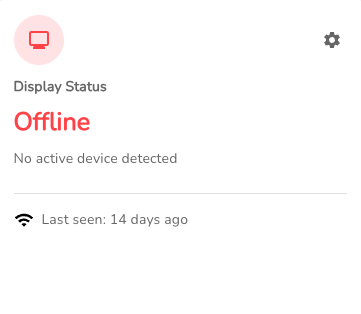
Get an offline device back online
Start with what you see on your TV.
Usually, it’s Wi-Fi.
A changed Wi-Fi password or setting is the most common cause. Your screen can still show saved content while offline. Reconnecting the player usually fixes it.
Step by step
If your screen is showing content
Press Back on the player’s remote, then select WIFI.
Choose your Wi-Fi network and enter the current password.
Once connected, press Home to return to your slideshow.
If your screen is off or blank
Make sure the TV and player both have power, all cables are firmly connected, and the TV is on the correct HDMI input.
Unplug the player’s power cable, wait 10 seconds, then plug it back in. Give it a few minutes to start.
If content returns but the player still shows offline, follow the Wi-Fi steps above.
Good to know
Allow a little time for the status to update after reconnecting. The status in an email won’t change after it is sent.
Still stuck or seeing a setup screen? Contact support below with your business name and what you see on the TV. Please don’t factory-reset the player.
Need help with this task? Tell us which account, display, or advert you’re working on.
Contact support