Media Library
Preview media with Fit or Fill
Check finished artwork before adding it to a screen.
Overview
The media preview offers Fit and Fill. Fit keeps the whole asset visible. Fill covers the slide area and may crop the edges. Background colors help fill the space around fitted media.
Step by step
Open an image or video from the Media Library.
Select Fit when the entire asset should be visible.
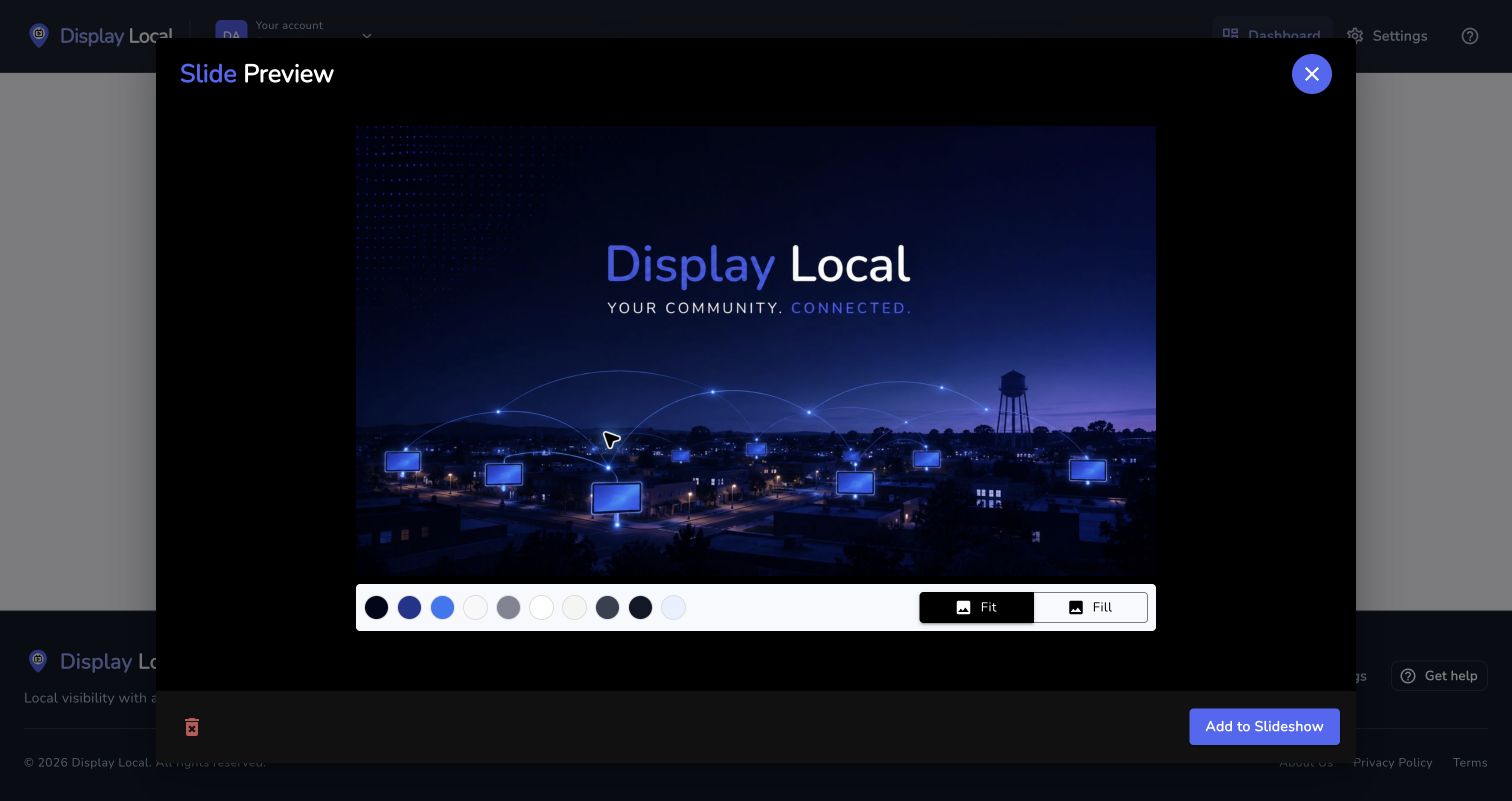
Check the framing, then choose Add to Slideshow. Select the image to view it full size. Select Fill when you want it to cover the slide.
Choose an available background color to complement the artwork.
Check the Slide Preview, then choose Add to Slideshow or Add to advertisement for the intended destination.
Good to know
For occasional layout adjustments, the slideshow Preview includes Open full editor.
Need help with this task? Tell us which account, display, or advert you’re working on.
Contact support