Install and connect a signage device
Connect power, HDMI, Wi-Fi, and the correct display account.
Overview
Your signage device connects to a TV through HDMI and needs power and an internet connection. The setup screen provides a code that links the player to the right account and display.
Step by step
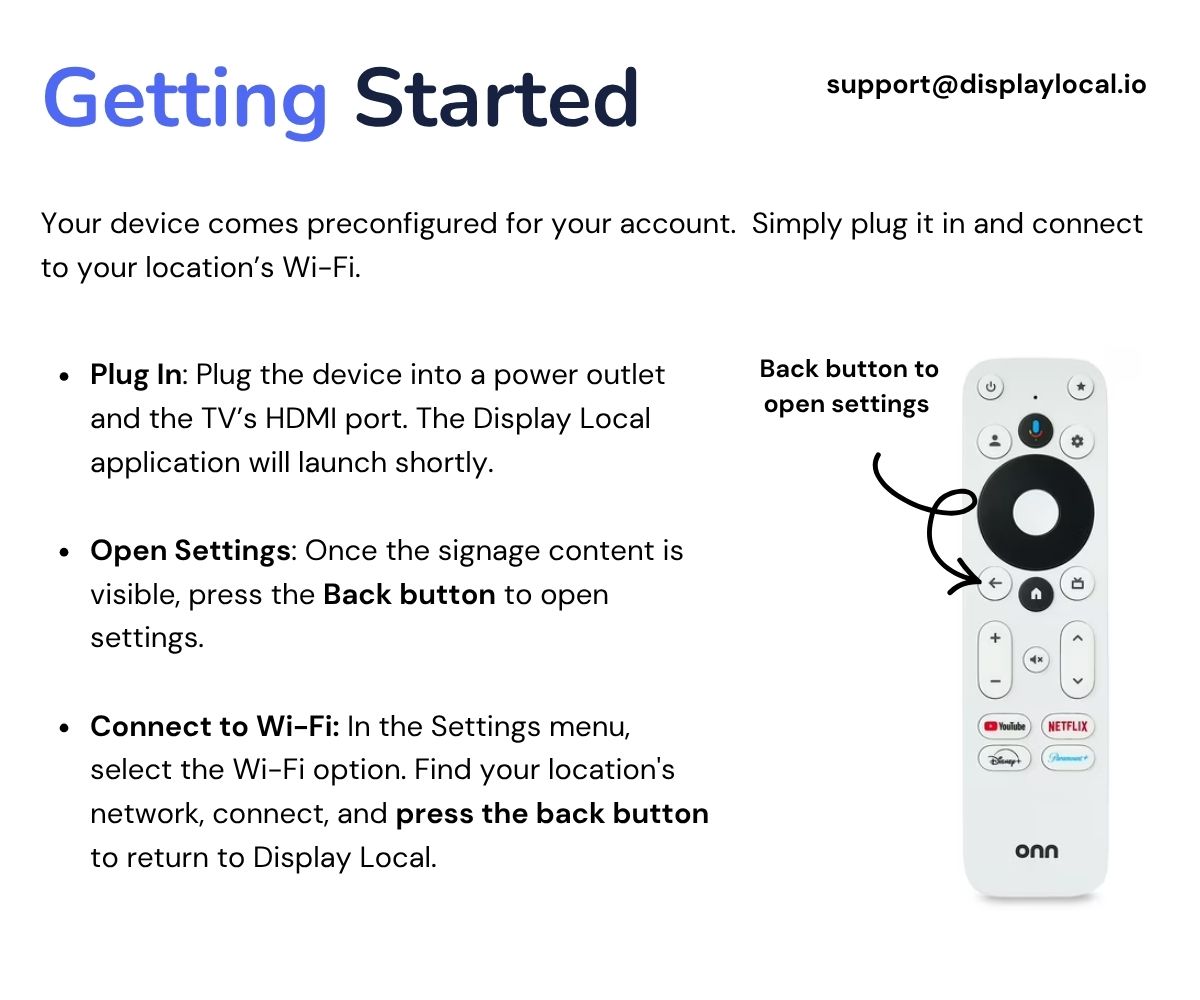
Connect the signage device to your TV with the HDMI cable, then connect its power cable.
Select the matching HDMI input on the TV and wait for the Display Local application to load.
Choose Connect WiFi on the device, select your Wi-Fi network, and complete the connection.
Press Home on the remote to return to setup after connecting.
Scan the setup QR code, or visit displaylocal.io/start and enter the code shown on your screen.
Sign in, choose the correct account, and select the display the device should play.
After activation, return to the TV and check that the expected slideshow appears.
Good to know
No Device on the dashboard means a device has not been assigned to that display.
For an existing device that is offline, check power, the TV input, and Wi-Fi before changing its account assignment.
Setup guide
Need help with this task? Tell us which account, display, or advert you’re working on.
Contact support