Show Facebook and Instagram posts
Connect a Facebook Page or linked Instagram account to a display.
Overview
Social Media uses the Facebook Pages and associated Instagram business accounts returned by Facebook authorization. After connecting your account, select which Page or Instagram account this display should use, then update the display.
Step by step
Select a display on the dashboard and open Content Sources → Social Media.
Choose Connect Facebook & Instagram. If accounts are already listed, use the add button beside Facebook Page to connect more.
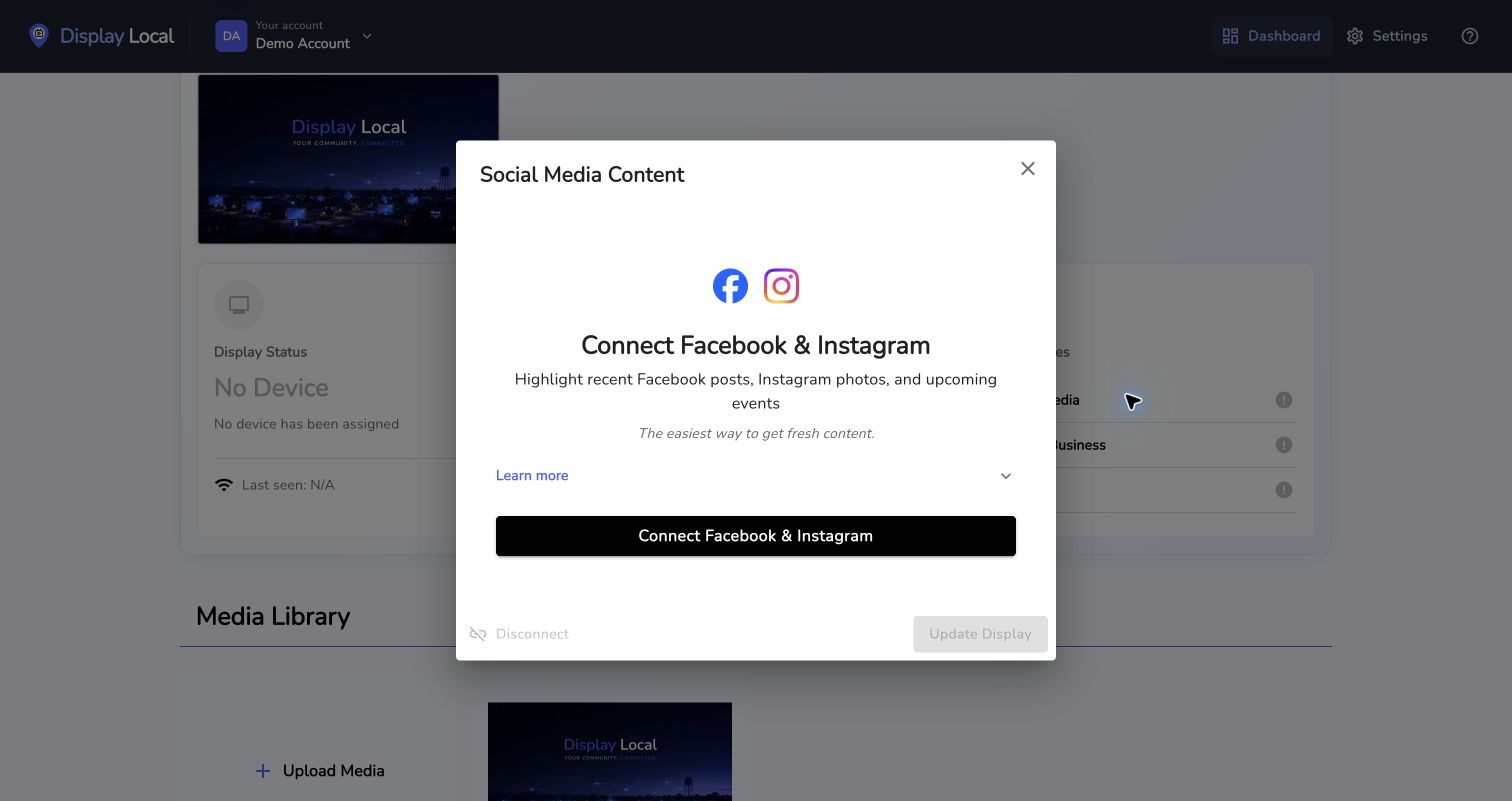
Start the connection from Social Media under Content Sources. Select the image to view it full size. Complete the Facebook sign-in and permission prompts with an account that manages the Page.
Choose the Facebook Page and/or Instagram Account from the lists.
Choose Update Display and check the resulting slides.
Good to know
An Instagram account must be associated with a Facebook Page to appear in this connection flow.
Choosing No Facebook Page or No Instagram Account clears that selection. Disconnect removes the display’s social source selections and its generated social slides.
Watch the tutorial
Need help with this task? Tell us which account, display, or advert you’re working on.
Contact support