Add local weather
Choose a city and add a weather slide.
Overview
Weather creates an automatic weather slide for the selected display. The setup preview shows whether it is using sample weather or the latest available weather for the city.
Step by step
Select the display on your dashboard and open Content Sources → Weather.
Search in City and choose a city from the suggestions.
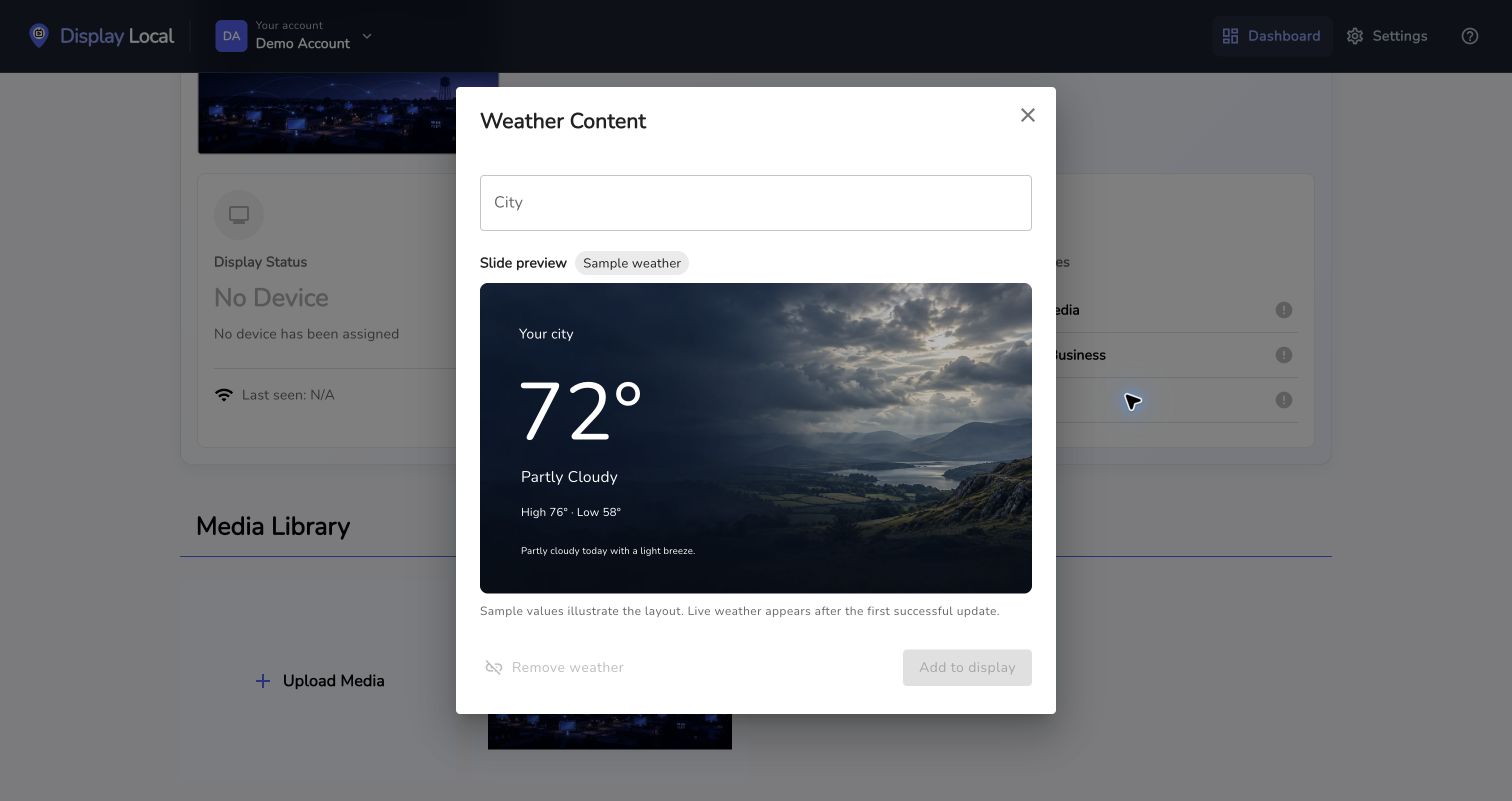
Choose a city before adding weather. The preview shown here uses sample values. Select the image to view it full size. Review the slide preview.
Choose Add to display, or Save changes if weather is already active.
Reopen Weather to check the update timestamp or change the city.
Good to know
Typing a city without selecting a result does not complete setup.
Sample values illustrate the layout; live values appear after a successful weather update.
Remove weather removes the weather source from this display.
Need help with this task? Tell us which account, display, or advert you’re working on.
Contact support