Add a slide to a display
Turn an image or video in your Media Library into a new slideshow slide.
Overview
Use the Media Library when your artwork is already finished. The Slide Preview lets you choose Fit, Fill, and a background before Add to Slideshow appends the design to your display.
Step by step
Select the display you want to update on your dashboard.
Scroll to the Media Library and choose an uploaded image or video. Upload it first if needed.
Check the Slide Preview and use Fit or Fill to adjust the artwork.
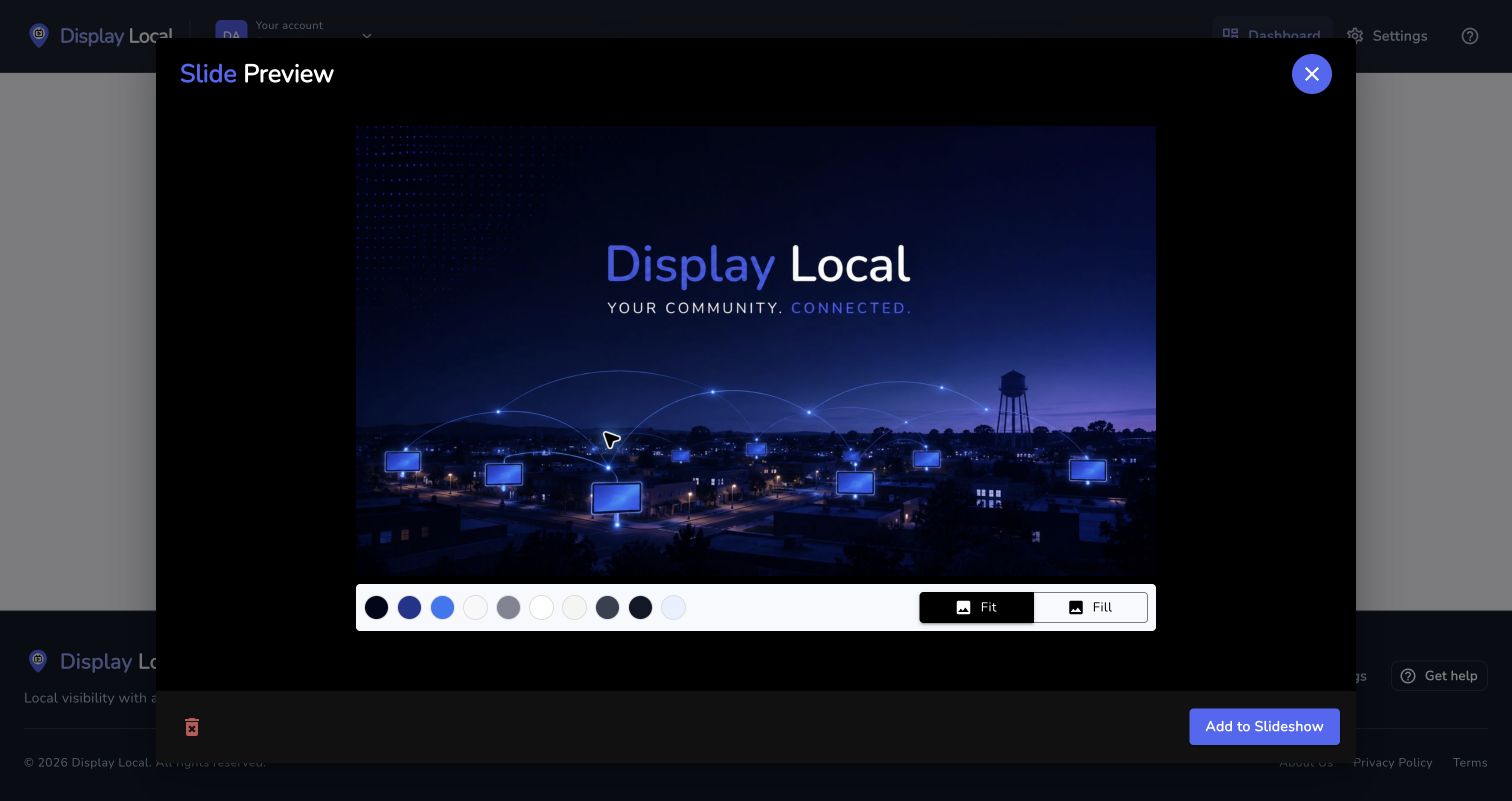
Check the framing, then choose Add to Slideshow. Select the image to view it full size. Choose Add to Slideshow. This saves the new slide immediately.
Check the updated Now Playing count, then use Preview to verify playback.
Good to know
Check the selected destination before adding content, especially when the account has multiple displays.
Watch the tutorial
Need help with this task? Tell us which account, display, or advert you’re working on.
Contact support