Schedule a slide for dates and weekly times
Show a promotion only during its intended window.
Overview
The Custom Schedule dialog combines Active Dates and Weekly Schedule. You can set a start date, end date, selected weekdays, and a daily time window.
Step by step
Select your display on the dashboard, open Preview, find the slide, and choose Schedule from its status button.
Under Active Dates, enable Start Date or End Date as needed and choose the dates.
Under Weekly Schedule, select the weekdays.
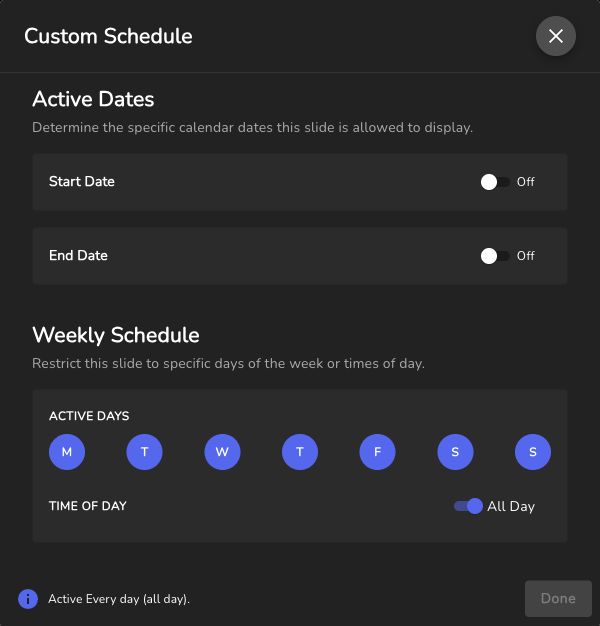
Use Active Dates and Weekly Schedule to define when the slide can play. Select the image to view it full size. Leave All Day on, or turn it off and set Start Time and End Time.
Review the schedule summary, choose Done, then select Publish Changes.
Good to know
A scheduled slide appears only when its schedule allows it.
Check your chosen dates and times carefully; the dialog does not include a separate timezone selector.
Need help with this task? Tell us which account, display, or advert you’re working on.
Contact support