Check device status and connection health
Read the screen’s last check-in, Wi-Fi quality, and available storage.
Overview
Display Status summarizes devices assigned to the display. Open its settings icon to inspect individual devices. Status is based on device check-ins, so it is useful alongside checking the actual screen.
Step by step
Find Display Status on your account dashboard.
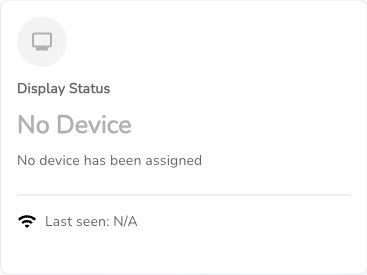
This demo has no assigned device. A connected device shows its status and last check-in here. Select the image to view it full size. Open the settings icon to view the device table.
Review each device’s last check-in, Wi-Fi rating, and available storage.
Use Manage for the selected device’s details.
For an offline device, check its power and internet connection; use the Wi-Fi tutorial if needed.
Good to know
No Device means no device is assigned.
Status Unavailable can mean live status is not enabled; older player versions may not report status.
A recent check-in is not a screenshot or proof that the TV is displaying the correct input.
Watch the tutorial
Need help with this task? Tell us which account, display, or advert you’re working on.
Contact support